Virtual Cockpit
GPS-Based Flight Instrument Simulator for Android
Welcome
Virtual Cockpit transforms your Android phone into a realistic flight instrument panel.
Using GPS and built-in sensors, it displays a classic eight-instrument panel that responds
to real motion — whether you're walking, biking, driving, or flying.
This version provides a Flight Data Recorder option. Click the FDR button and a
KML file will be created that you can use to view your trip on Google Earth. Sensor
data from your Android device will also be recorded that can be used to create an NTSC
accident/incident report. A Windows app is in development that will load the GPS and
sensor data in the KML file to re-create and visualize your flight or car trip.
Current Version: 2.2.30 (July 2, 2026)

Virtual Cockpit running in a car
Features
- Eight Instruments: Airspeed, Attitude, Altimeter, G-Meter, Turn Coordinator, Heading, Vertical Speed, Clock
- GPS + Sensor Modes: Uses GPS when moving, magnetic compass when stationary
- Manual Override: Tap controls to compare GPS vs sensor readings
- Kollsman Knob: Adjustable altimeter pressure (QNH/GPS/QFE modes) with number pad popup, altitude entry with back-calculation
- Speed Units: Knots (KTS), Miles per Hour (MPH), or Kilometers per Hour (KPH)
- Flight Data Recorder: Records your track and full sensor data to KML files (crash-safe)
- Barometric Backup: Altitude and vertical speed from barometer when GPS unavailable
- Dual Compass Mode: Works with phone vertical (instrument panel) or flat (on table)
- Barometer Auto-Calibration: Background calibration using GPS altitude — no manual entry required
- Distance-Triggered FDR: Records every 100m of movement — no data waste when stationary
- Menu System: Built-in Instructions, Theory, Help, Cal Status, Data, and About pages
- MC Status Indicator: Master Caution button shows GPS state — available, searching, or disabled
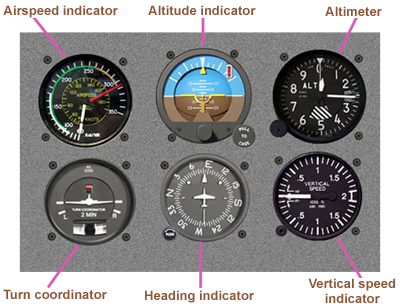
The standard "six-pack" of basic airplane instruments
[Top]
Download
Current Version: 2.2.30
Click the icon below to download the APK installation file:

Download Virtual Cockpit
Installation Steps
- Click the download link above
- Open your Downloads folder and tap the APK file
- If prompted, allow installation from unknown sources
- Google Play will scan the file for safety
- Follow the prompts to complete installation
Note: Virtual Cockpit will be available on Google Play soon. Beta testers get early access via direct APK download.
[Top]
Instructions
Getting Started
- Hold your phone in landscape orientation (wide, not tall)
- For best results, hold the phone vertical like an instrument panel, screen facing you
- The compass also works with the phone flat on a table or airline tray
- Grant location permission when prompted
- The app works best when mounted in a vehicle or held steady
Screen Layout
The screen is divided into two areas:
- Left column: MENU button, speed unit buttons (KTS/MPH/KPH), FDR recording controls (FDR/STOP, FILES), and MC (Master Caution) status button
- Center area: Eight instruments arranged in a 4×2 grid
The Instruments
Airspeed Indicator (top row, position 1)
- Shows ground speed from GPS
- Scale: 0-200 knots with major marks every 25 knots
- Tap KTS/MPH/KPH buttons on the left to change units
- Unit label displayed in the center of the dial
- Shows zero when GPS is unavailable
Attitude Indicator (top row, position 2)
- Blue = sky, Brown = ground
- Yellow miniature aircraft in center as reference
- Bank index marks at 10°, 20°, 30°, and 60°
- Pitch lines at 5° and 10° intervals
- When stationary or below 5 knots: Shows actual phone tilt relative to gravity (smooth IIR filtering reduces jitter)
- When moving above 5 knots with GPS: Shows computed bank angle from coordinated turn physics, pitch from climb rate
Altimeter (top row, position 3)
- Three-needle display like a real aircraft altimeter
- Long triangle pointer: 10,000 ft increments (one rotation = 100,000 ft)
- Short wide hand: 1,000 ft increments (one rotation = 10,000 ft)
- Long thin hand: 100 ft increments (one rotation = 1,000 ft)
- Kollsman Window (small box on dial face):
- Shows current mode: "QNH", "GPS", or "QFE"
- Tap the window to cycle through modes: QNH → GPS → QFE → QNH
- When GPS is unavailable, GPS mode is skipped (QNH ↔ QFE only)
- Pressure displayed in inHg or hPa depending on selected unit
- Kollsman Knob (small circle at bottom-left of bezel):
- Tap to open the pressure setting popup
- QNH mode: Set sea-level pressure; both altitude and barometer boxes are editable. Enter an altitude to back-calculate the pressure, or enter the pressure directly. Press STD to reset to 29.92 inHg / 1013.3 hPa.
- QFE mode: Set field elevation to zero. Altitude defaults to 0, barometer shows corrected sensor reading. Press SET to zero the altimeter at your current location.
- GPS mode: Read-only diagnostic display showing GPS altitude and GPS error (GPS altitude minus barometric altitude).
- UNITS button toggles between inHg and hPa
- QNH and QFE settings are remembered between mode switches and app restarts
- When QNH is updated, QFE auto-corrects by the same pressure delta
G-Meter (top row, position 4)
- Round dial showing current G-force
- Scale: -1G to +3G
- 1G reference at 9 o'clock position (normal gravity when level)
- Tick marks at 0.5G intervals
- Useful for monitoring turns, acceleration, and maneuvers
- Works regardless of GPS — always reads from accelerometer
Turn Coordinator (bottom row, position 1)
- Miniature airplane shows turn rate, not bank angle
- Wings aligned with L/R marks = standard rate turn (3°/second, 360° in 2 minutes)
- Inclinometer ball shows slip/skid — keep it centered for coordinated flight
- "2 MIN" label indicates standard rate timing
- Source box shows MAG or GPS — tap to toggle between magnetic and GPS-derived turn rate
- Airplane locked level when stationary (below 5 knots)
Heading Indicator (bottom row, position 2)
- Rotating compass card with N, E, S, W and numeric headings every 30°
- Yellow lubber line at top shows current heading
- Source indicator box shows data source:
- GPS: Heading from GPS ground track (accurate when moving)
- AUTO: GPS mode selected but falling back to MAG (speed below 5 knots)
- MAG: Heading from magnetic compass (used when stationary or in MAG mode)
- ERR: Phone tilted beyond reliable compass range — heading frozen at last good value
- Tap the source box to toggle between GPS and MAG heading
- Compass works with phone vertical (normal use) or flat on a table
Vertical Speed Indicator (bottom row, position 3)
- Shows climb or descent rate in feet per minute (FPM)
- Scale: ±2,000 FPM (zero at 9 o'clock, ±2000 meeting at 3 o'clock)
- UP/DN labels with 0.5, 1, 1.5, 2 thousand markers
- Uses GPS altitude change rate, or barometric rate when in QNH/QFE mode
Clock (bottom row, position 4)
- 12-hour analog clock with hour, minute, and second hands
- Timezone box (above center) shows abbreviation (e.g., MST, EDT)
- AM/PM box (below center) shows time of day
- Green text = synchronized with network time
- Red text = using device time only
Left Column Controls
MENU Button
- Opens a dropdown menu with six pages:
- INSTRUCTIONS: Full user manual (the content on this web page)
- THEORY: How each instrument works physically and mathematically
- HELP: Quick per-instrument reference guide
- CAL STATUS: Barometer auto-calibration pipeline status
- DATA: Live sensor data display (accelerometer, attitude, compass, barometer, GPS, settings)
- ABOUT: Version, credits, and copyright
Speed Unit Buttons (KTS / MPH / KPH)
- Tap to select speed units for the airspeed indicator
- Selected button highlighted in yellow
- KTS = Knots (nautical miles per hour)
- MPH = Miles per hour
- KPH = Kilometers per hour
FDR / STOP Button
- Tap FDR to start recording your flight data
- Button changes to STOP (red) while recording
- Tap STOP to end recording and save the file
- Recording is crash-safe — if the app closes unexpectedly, data up to that point is preserved
- Records both KML track data and full sensor state (FDR comments) for later analysis
FILES Button
- Opens the Downloads/VirtualCockpit/ folder
- Recorded tracks saved as KML files
- Filename format: FDR_VirtualCockpit_YYYY-MM-DD_HHMMSS.kml
- Tap a KML file to open in Google Earth
MC — Master Caution Button
- Shows current GPS status:
- MC ✓ (green): GPS fix acquired, position data active
- MC ✗ (gray): GPS enabled but no fix yet (searching)
- MC (yellow): GPS disabled (device location off or app permission denied)
Comparing GPS vs Sensor Readings
You can independently toggle GPS for two instrument groups:
Turn Coordinator source box (tap the MAG/GPS box) controls:
- Airspeed Indicator — GPS speed vs zero
- Attitude Indicator — GPS-derived bank/pitch vs accelerometer tilt
- Turn Coordinator — GPS turn rate vs magnetic turn rate
Heading Indicator source box (tap the GPS/MAG/AUTO/ERR box) controls:
- Heading Indicator — GPS track vs magnetic compass
Altimeter Kollsman window (tap the mode display) controls:
- Altimeter — GPS altitude vs barometric altitude (QNH or QFE)
- VSI — GPS altitude rate vs barometric rate
These toggles are guarded — GPS options are disabled when GPS is unavailable, preventing confusing states.
Barometer Auto-Calibration
Virtual Cockpit automatically calibrates the barometer in the background using GPS altitude. No manual entry is required for normal use.
How it works:
- While the app is running with a GPS fix, it silently accumulates GPS altitude vs barometer pressure data
- A running offset correction is computed and applied to the altimeter automatically
- Calibration improves over time as more data is collected
- The calibration log is saved to Downloads/VirtualCockpit/ for analysis
- Open Menu → CAL STATUS to see current calibration state
For best results:
- Keep QNH current — set it from a nearby METAR before flying
- Altitude accuracy is approximately equal to GPS altitude accuracy
- Slope calibration improves after driving with significant elevation change (>300m)
Compass Tips
Phone Orientation:
- Vertical (X-up): Phone upright like an instrument panel — normal use
- Flat (Z-up): Phone lying flat on a table or tray — also works
- The app automatically switches between compass algorithms based on phone tilt
- Transition between orientations is smoothed to avoid jumps
Error Detection:
- If you tilt the phone too far (screen facing down, or rolled sideways), the heading becomes unreliable
- The source box will show "ERR" and the heading will freeze at the last good value
- Return the phone to a valid orientation to resume heading updates
Magnetic Interference:
- The magnetometer can be affected by nearby metal or electronics
- Car interiors, phone cases with magnets, and some mounts may cause errors
- For best accuracy, keep the phone away from magnetic sources
- Use GPS heading when moving for most accurate direction
About FDR Recording
Virtual Cockpit records your flight data in KML format, compatible with Google Earth. Each track point includes a full sensor data snapshot in FDR comment format for later analysis.
Recording Features:
- Track points saved every 100 metres of movement — no data waste when stationary
- Each point includes pipe-delimited FDR data: heading, altitude, speed, bank, pitch, turn rate, G-forces, barometric pressure, raw accelerometer, gyroscope, magnetometer, rotation quaternion, and GPS accuracy
- Crash-safe: data is written incrementally, so even if the app closes unexpectedly, your track up to that point is saved
- Metadata includes: app version, device model, recording duration, number of points
- LookAt element automatically frames your track when opened in Google Earth
- Timestamps allow playback animation in Google Earth
Viewing Your Tracks:
- Tap FILES to open Downloads folder
- Tap the KML file to open in Google Earth
- Or transfer the file to a computer for viewing in Google Earth Pro
- Use the time slider in Google Earth to animate your route
FDR Data for Analysis:
The FDR comment data embedded in each KML file is designed to support a future companion app that will generate NTSB-style flight analysis — heading, altitude, roll, pitch, and yaw graphs with route overlay on a map. The raw sensor data (accelerometer, gyroscope, magnetometer, rotation quaternion) also allows the device orientation relative to the aircraft to be reconstructed, so the phone can be mounted in any fixed position during a flight.
[Top]
About Sensors
Virtual Cockpit uses the sensors built into your Android device. The more sensors your device has, the more features will be available.
Sensors Used by Virtual Cockpit
| Sensor |
What It Does |
Used For |
| GPS |
Location, speed, altitude, heading |
Airspeed, Altitude, Heading (when moving), VSI, Turn Rate, FDR position |
| Accelerometer |
Detects tilt and G-forces |
Attitude Indicator (sensor mode), G-Meter, Slip Ball, Compass tilt detection, FDR raw data |
| Gyroscope |
Angular rotation rates |
FDR raw data (angular rates in device frame for flight reconstruction) |
| Magnetometer |
Digital compass |
Heading when stationary, FDR raw data (magnetic field vector) |
| Rotation Vector |
Fused orientation (gyro + accel + mag) |
Smooth magnetic heading with tilt compensation, FDR quaternion |
| Barometer |
Air pressure |
Barometric altitude and VSI (QNH/QFE modes), calibration |
What If a Sensor Is Missing?
| Missing Sensor |
Impact |
| GPS |
Airspeed shows zero, heading uses magnetometer only, altitude/VSI use barometer if available |
| Magnetometer |
No heading when stationary — must be moving for GPS heading |
| Barometer |
No altitude or VSI when GPS is unavailable; calibration not available |
| Accelerometer |
G-Meter and slip ball non-functional, attitude indicator limited |
| Gyroscope |
FDR data will lack angular rate information; all instruments still function normally |
Note: Most modern Android phones have all required sensors. Virtual Cockpit will use whatever is available and gracefully handle missing sensors.
[Top]
Future Plans
Coming Soon
- CVR (Cockpit Voice Recorder): Audio recording with timestamps matched to FDR data
- Night/Red Mode: Red lighting for dark conditions, preserves night vision
- Photo-Realistic Instruments: Bitmap bezels, glass overlays, and enhanced dial textures
- iOS Version: Port to iPhone/iPad via Kotlin Multiplatform
Under Consideration
- Glass Cockpit Mode — Modern Garmin-style PFD display with tape instruments
- FDR Companion App — Desktop app for NTSB-style flight analysis with graphs and map overlay
- Flight Logbook — Automatic logging of trips with statistics
- Replay Mode — Play back recorded trips with animated instruments
- Compass calibration wizard
- HUD mode for windshield mounting
- Audio alerts for altitude and bank angle
Have a suggestion? Email me at mark@virtualcockpit.ca
[Top]
Become a Beta Tester
Your feedback as a Virtual Cockpit beta tester is valuable! Help shape the app by reporting what works, what doesn't, and what features you'd like to see.
How to Participate
- Download and install the latest version
- Use it during your normal activities — driving, biking, walking, flying
- Try different features: toggle GPS modes, record tracks, compare sensor readings, use the Kollsman knob, try calibration
- Send feedback to mark@virtualcockpit.ca
What to Report
- Bugs or crashes (include your device model and Android version)
- Instruments that don't seem accurate
- Features you like or don't like
- Suggestions for improvements
- New feature ideas
Test Scenarios to Try
- Compare GPS heading vs MAG heading while driving — do they match?
- Try the compass with phone vertical, then flat on a table
- Record a drive with FDR and view it in Google Earth
- Force-close the app during recording — is the track still saved?
- Try the Kollsman knob: set QNH, switch to QFE, then update QNH and check QFE auto-corrects
- Check Menu → CAL STATUS to see the auto-calibration pipeline status
- Open Menu → DATA and compare raw sensor values with displayed instruments
- Test on different devices if you have access to them
Prizes: Beta testers who suggest features that get implemented will receive recognition and rewards!
Share: Feel free to invite friends to join the beta. Ask them to email me to get on the official tester list for update notifications.
[Top]
Virtual Cockpit
GPS-Based Flight Instrument Simulator
© 2025-2026 R.M. Moore
virtualcockpitfun@gmail.com
Recent Version History
| Version |
Date |
Changes |
| 2.2.30 |
July 2, 2026 |
Beta expiry extended to August 31; barometer auto-calibration fixes: altitude gate prevents flight data from corrupting cal ibration; offset sanity gate rejects bad QNH-driven values; manual calibration now takes priority over auto-cal; Cal Status page adds Resume Auto-Cal and Reset Tier 2 buttons.
|
| 2.2.29 |
May 2026 |
Distance-triggered FDR recording (100m intervals); FILES button opens VirtualCockpit folder; barometer auto-cal folder fix |
| 2.2.28 |
May 2026 |
MC (Master Caution) button replaces GPS indicator; CALIBRATE page hidden (access via long-press on CAL STATUS); menu text cleanup |
| 2.2.27 |
May 2026 |
Full barometer auto-calibration system: offset and slope pipelines; Cal Status page; C-to-clear fix; ASI/compass text size reduction |
| 2.2.26 |
May 2026 |
BaroCalManager: three-tier offset auto-calibration; active offset applied to altimeter |
| 2.2.25 |
May 2026 |
QNH popup: BAROMETER shows computed QNH from live sensor; ALTITUDE shows computed baro altitude |
| 2.2.24 |
May 2026 |
QNH popup wired to live corrected pressure; DATA page slope display added |
| 2.2.23 |
May 2026 |
SAF folder picker for FDR files; timer-driven FDR records when GPS absent; FILES long-press opens folder picker |
| 2.2.22 |
Apr 2026 |
WindowCompat edge-to-edge layout; safeDrawingPadding; sensor availability detection and DATA page warnings |
| 2.2.21 |
Apr 2026 |
Fullscreen fix for Samsung A5 (status bar ghost on resume) |
| 2.2.20 |
Apr 2026 |
Barometer slope + offset calibration; CalibratePage redesigned with direct numpad entry |
| 2.2.19 |
Apr 2026 |
FdrService foreground service: FDR recording survives Google Maps in foreground; STOP confirmation dialog |
| 2.2.17 |
Apr 2026 |
Button column scales from screen height; all proportions device-independent |
| 2.2.16 |
Apr 5, 2026 |
Improved font definitions for dials so they resize properly across various devices.
|
| 2.2.15 |
Mar 31, 2026 |
FlightMath extraction (iOS prep); FDR recording with full sensor data (gyro, mag, quaternion); REC→FDR button; About page shows beta expiry |
| 2.2.14 |
Mar 30, 2026 |
HELP page (per-instrument quick reference); DATA page (live sensor display) |
| 2.2.13 |
Mar 29, 2026 |
Kollsman popup rework: dual editable boxes, altitude back-calculates pressure, GPS diagnostic mode, QFE defaults, CalibratePage persists reference elevation, hPa 1 decimal |
| 2.2.12 |
Mar 15, 2026 |
GPS 3-state model; toggle guards; altimeter skips GPS when unavailable; heading AUTO fallback |
| 2.2.11 |
Mar 13, 2026 |
4×2 grid rebuild with shared master dial size; box text normalization |
| 2.2.10 |
Mar 12, 2026 |
GPS heading falls back to MAG below 5 kts; title bar removed |
| 2.2.9 |
Mar 12, 2026 |
Barometer calibration (CALIBRATE page with offset and reference elevation) |
| 2.2.8 |
Mar 12, 2026 |
Kollsman popup made draggable; About page credits |
| 2.2.5 |
Mar 11, 2026 |
Menu dropdown with 6 pages; INSTRUCTIONS, THEORY, CALIBRATE, HELP, DATA, ABOUT |
| 2.2.4 |
Mar 10, 2026 |
MENU button added; QFE auto-correction bug fix |
| 2.2.0 |
Mar 9, 2026 |
Kollsman knob: QNH/GPS/QFE modes, popup with number pad, bezel 60% narrower, MAG turn rate |
| 2.0.6 |
Mar 7, 2026 |
G-meter linear scale fix; larger indicator boxes; compass tap toggles GPS/MAG |
| 2.0.0 |
Mar 3, 2026 |
Major refactoring: modular architecture with 6 source files |
| 1.12.14 |
Mar 1, 2026 |
Dual compass algorithm (works vertical or flat); attitude indicator smoothing |
| 1.12.11 |
Feb 28, 2026 |
Crash-safe KML recording (incremental file writing) |
| 1.12.9 |
Feb 27, 2026 |
Compass tilt error detection (ERR display) |
[Top]